> For the complete documentation index, see [llms.txt](https://docs.threatdefence.com/llms.txt). Markdown versions of documentation pages are available by appending `.md` to page URLs; this page is available as [Markdown](https://docs.threatdefence.com/soc-analyst-guide/quickstart.md).
# Quickstart
**Security Detections Dashboard**
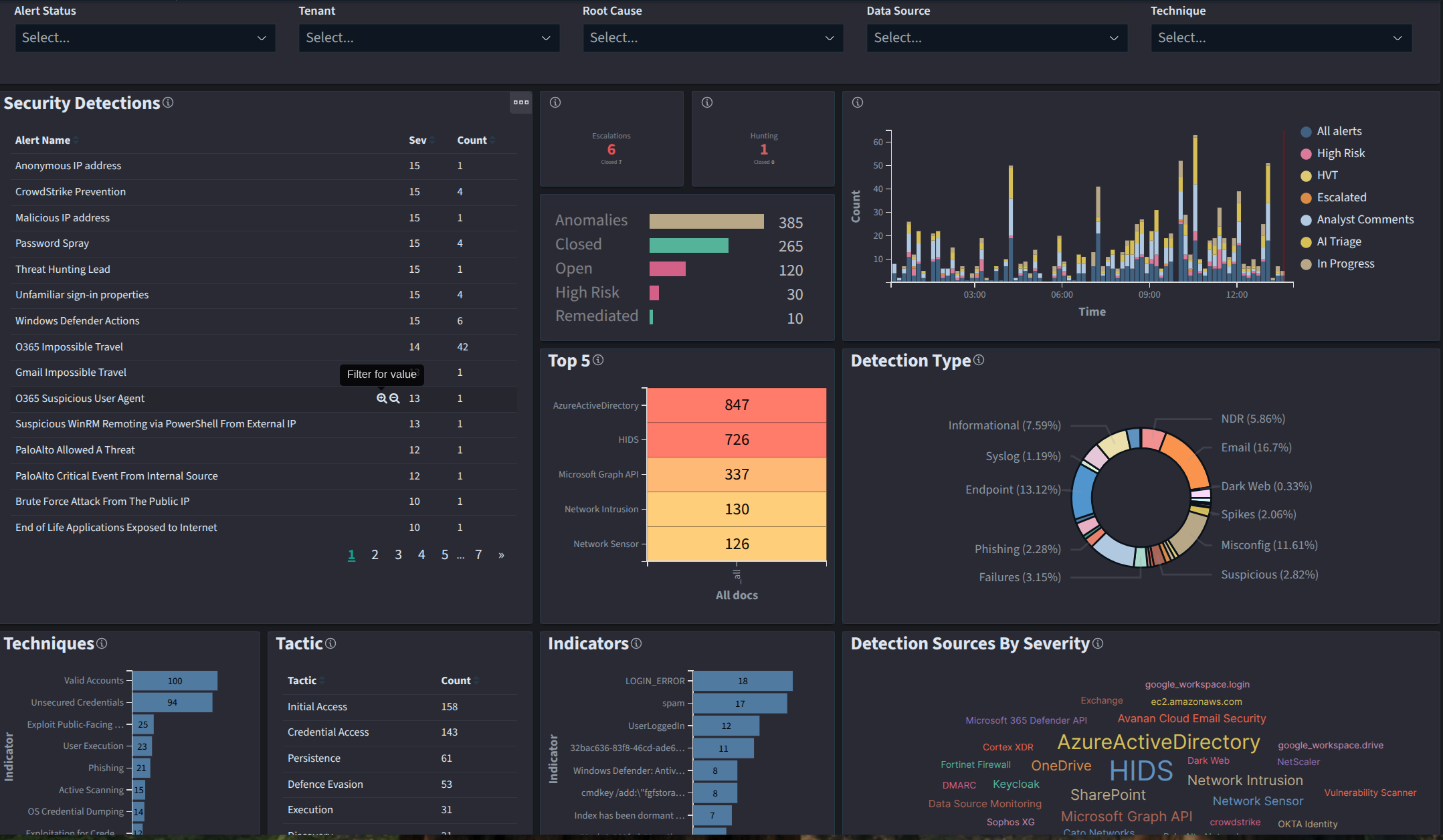
The primary triage location is the **Security Detections Dashboard**, which displays alerts in a collapsed view for efficient review. Alerts are generated from various data sources and can be filtered, inspected and managed to establish closure or escalation. The platform supports AI-assisted triage, automation, and hunting for deeper investigations, helping SOC analysts focus on high-fidelity threats while reducing manual workload.
Key principles for triage:
* Prioritise based on severity (e.g., High, Medium, Low).
* Review `td.alert.message` for quick forensics, or use hunt for more depth.
* Validate behaviors and close alerts only when confirmed benign or remediated.
* Alerts can be reopened if new evidence emerges.
* Leverage the AI Assistant for automated suggestions.
Overall diagram of an alert lifetime:
```*
START
|
V
[ Access Security Detections Dashboard ]
V
[ Step 1: Initial Review ]
| - Set Time: Last 24 hours
| - Check Table: Alert Name, Severity
| - Check Charts: Techniques, Sites, Indicators, Top Assets At Risk
V
[ Step 2: Inspect a single Alert in Detections Feed ]
| - Select an alert: Click next to alert name in security detections table
| - Review Columns: Time, td.alert.name, td.alert.message
| - Use td.alert.message for initial forensics
| - Benign? (e.g., maintenance) → Proceed to Close
| - Malicious? (e.g., unusual IP) → Investigate
| - Need more info? → Expand Alert
V
[ Step 3: Deep Investigation (if needed) ]
| - Click "Hunt"
| - Real-time forensics, endpoint/NDR queries
| - Check artifacts (port, IP, User, Process), threat intel
| - Cross-reference: Analyst Comments, AI Triage
V
[ Step 4: Validate & Update/Close ]
| - Click "Update" in Detections Feed
| - Options: Close (with reason), Remediated, Prevented, Mitigated
| - Choose custom reason, add comments (e.g., "Validated via Hunt")
| - Use AI Assistant for comment suggestions
| - Escalate if needed (mark Escalated)
V
[ Step 5: Post-Triage Actions ]
| - Monitor trends (Detection Sources by Severity)
V
[ Re-open if New Evidence ]
| - Search by Time/Name, click update, revert status
V
END
```
### Platform Navigation Overview
Access the platform analyst console. In summary, you can investigate, hunt, triage by using time filters(i.e. last 7 days, or now) and clicking on visualizations to narrow down your search. For more granular filtering, there is a text based search bar available.
* **Dashboard Filters and Views**:
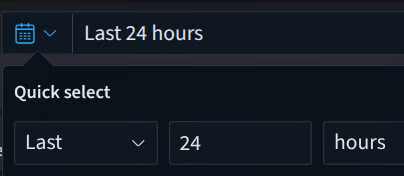
* **Time Range**: Default to "Last 24 hours" (adjust via "Show dates" for custom periods, e.g., last 30 days) or customer time range.

```
* **Menu Filters: Use predefined options like:
* Alert Status (e.g., Open, Closed, In Progress).
* Tenant (e.g., threatdefence, tdsoc, acme).
* Root Cause, Data Source (e.g., Keycloak, O365, NDR, Dark Web, Mailgun, google\_workspace.drive, Network Intrusion).
* Technique (e.g., Indicator, Exploit Public-Facing, Valid Accounts).
* AI Outcome, MSP, Severity, Tags.
```
* **Key Sections**:
* **Security Detections Table**: Lists alerts by Name and Severity. Sort by severity, hover over any alert name to filter in/out and investigate a single alert:
* Charts and Aggregations:
* Anomalies (e.g., Open, High Risk).
* Detection Types (e.g., Spikes, Informational).
* Techniques (e.g., LOGIN\_ERROR).
* Impacted Sites/Tenants (e.g., threatdefence).
* Indicators (e.g., IP addresses, geolocations like Australia/Germany).
* Detection Sources by Severity (e.g., pie chart for Keycloak, HIDS).
* Top 5: Highlights frequent entities (e.g., SOC-SNAP-1.SOC.LAB.LOCAL, users like Emily/Chris).
* Detections Feed: Paginated table showing detailed alert rows. Expand for full inspection.
### Triage Process
#### Step 1: Initial Review on Security Detections Dashboard
* Log in and navigate to the Security Detections Dashboard.
* Apply filters: Set time to Last 24 hours or 7 days.
* Scan the **Security Detections Table** for top alerts by Severity.
* Set some data filters to remove noise: from the header menu, choose tenant:"your site", Alert Status: Escalated, Data Source:O365, for example. If you prefer to use the keyboard, in the search bar any queries can be used:
* `user.name:john AND source.ip:10.10.10.10 AND (destination.port:(445 OR 446) OR destination:ip:"12.12.12.0/24")`
* *Tip: Use asterisks (`*`) as wildcards and `AND,OR` to connect keywords.*
* Review aggregated charts for patterns: Check Techniques (e.g., LOGIN\_ERROR), Impacted Sites (e.g., threatdefence), and Indicators (e.g., IPs, countries like India/Germany).
#### Step 2: Inspect Individual Alerts in Detections Feed
* Click into the **Detections Feed** (paginated view).
* For each row, examine columns:
* **Time**: E.g., Sep 12, 2025 @ 11:50:01.370.
* **td.alert.name**: Alert type (e.g., Spike Of KeyCloak Errors).
* **td.alert.message**: High-level forensics (e.g., "KeyCloak Identity Server reports spike of LOGIN\_ERROR events with user\_temporarily\_disabled, last seen user was \['acme.tester'], Australia, NA, IP, threatdefence."). Use this to establish initial closure:
* Benign? (E.g., known maintenance.)
* Malicious? (E.g., unusual IP/location.)
* Needs more info? Proceed to expansion.
* **td.interactions**: View related events or correlations.
* **td.alert.status**: Default "-", update to In Progress.
* Expand the alert (click row) for detailed data inspection: Logs, timelines, associated docs, and AI suggestions.
#### Step 3: Deep Investigation if Needed
* If `td.alert.message` lacks context (e.g., to validate behavior over 30 days):
* Click **Hunt** next to the alert name in the Detections Feed.
* This opens a dedicated **Hunting Dashboard** for maximum depth: Real-time forensics, endpoint searches, NDR flows, threat intel integration, and AI-assisted hunting. Query across sources (e.g., endpoints, cloud) for timelines, artifacts (RAM, registry), or behaviors.
* Use platform tools: Automated threat hunting, digital forensics (e.g., extract deleted files), and playbooks for containment.
* Cross-reference with global views: Analyst Comments, AI Triage, or Escalated for team input.
* For external validation: Check Dark Web leaks or supply chain exposures via integrated intel.
#### Step 4: Validate and Update/Close Alert
* Once validated (benign, remediated, or mitigated):
* Click **Update** in the Detections Feed.
* Options: Set status to Closed (with reason, e.g., "False positive - legit user activity"), Remediated, Prevented, or Mitigated.
* Add comments: E.g., "Validated via Hunt; no compromise."
* Use **AI Assistant** for suggestions (e.g., auto-close low-risk).
* If escalation needed: Mark as Escalated or create a Ticket (OverDue tracking available).
* Alerts auto-update statuses.
* Re-open if new evidence: Search by Time/Name and revert status.
#### Step 5: Post-Triage Actions
* Review summaries: E.g., AI Triaged, Tickets.
* Generate reports: Use executive-friendly insights for assurance.
* Monitor trends: E.g., Detection Sources by Severity chart.
### Best Practices and Tips
* **Prioritization**: Start with High Severity alerts. Use Top 5 for frequent actors.
* **AI Leverage**: Enable AI Triage for workload reduction; review outcomes before closing.
* **Evidence-Based Closure**: Always document forensics from `td.alert.message` or Hunt to support audits.
* **Common Pitfalls**: Avoid closing without Hunt if behavior spans >24 hours. Exclude #wl early to reduce noise.
* **Escalation Criteria**: Impossible Travel, Volt-Typhoon tools, or Dark Web hits with internal matches.
* **Performance**: The platform deploys in minutes; use 24x7 SOC for support if stuck.
* **Training**: Practice with #demodata. For advanced queries, use platform's full features (e.g., geocode filters).
### Troubleshooting
* No alerts? Check filters (e.g., remove NOT #closed) or data ingestion.
* Hunt not loading? Ensure tenant permissions; contact support via platform chat.
* Re-open issues? Search by Time/Name and edit status.
* For platform updates, visit or the interactive tour at threatdefence.com.
This manual ensures efficient, evidence-based triage, aligning with ThreatDefence's goal of transforming data into actionable security. Review quarterly or after platform updates.
---
# Agent Instructions
This documentation is published with GitBook. GitBook is the documentation platform designed so that both humans and AI agents can read, navigate, and reason over technical content effectively. Learn more at gitbook.com.
## Querying This Documentation
If you need additional information that is not directly available in this page, you can query the documentation by asking a question.
Perform an HTTP GET request on the following URL with the `ask` and `goal` query parameters:
```
GET https://docs.threatdefence.com/soc-analyst-guide/quickstart.md?ask=&goal=
```
`ask` is the immediate question: it should be specific, self-contained, and written in natural language.
`goal` is what the user is ultimately trying to achieve, the reason they need the answer. Sharing it helps GitBook give you a better, more relevant answer. A goal is most helpful when it describes the outcome the user wants rather than restating the question. For example, with `ask=how do I create an API token`, a goal like `automate deployments from our CI pipeline` lets GitBook tailor the answer to that use case.
The response will contain a direct answer to the question and relevant excerpts and sources from the documentation.
Use this mechanism when the answer is not explicitly present in the current page, you need clarification or additional context, or you want to retrieve related documentation sections.